Animate This Look
VideoA controlled image-to-video pass: a slow head turn, moving hair, drifting fog, and a gentle push-in.
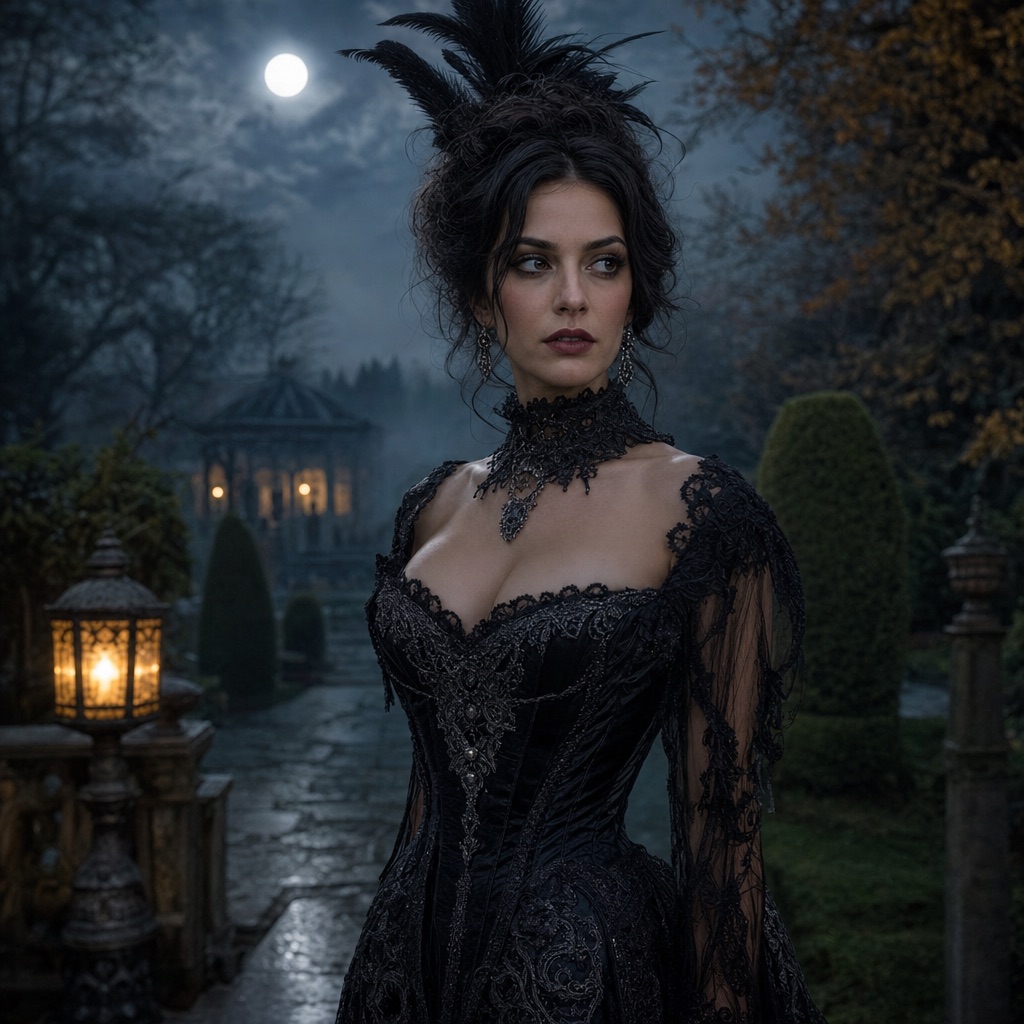
Open this presetA Halloween portrait becomes more shareable when it moves. This workflow takes a finished costume photo and adds controlled motion: a slow head turn, loose hair moving in a light breeze, fog drifting through the background, and a gentle camera push-in.
The key word is controlled. Large motions — dancing, running, a fast camera orbit — are much more likely to distort a face or change a costume. For a first video, small motions produce a more convincing result and cost less to iterate.
80 credits per image. Video costs more and is shown before you generate. No app install.
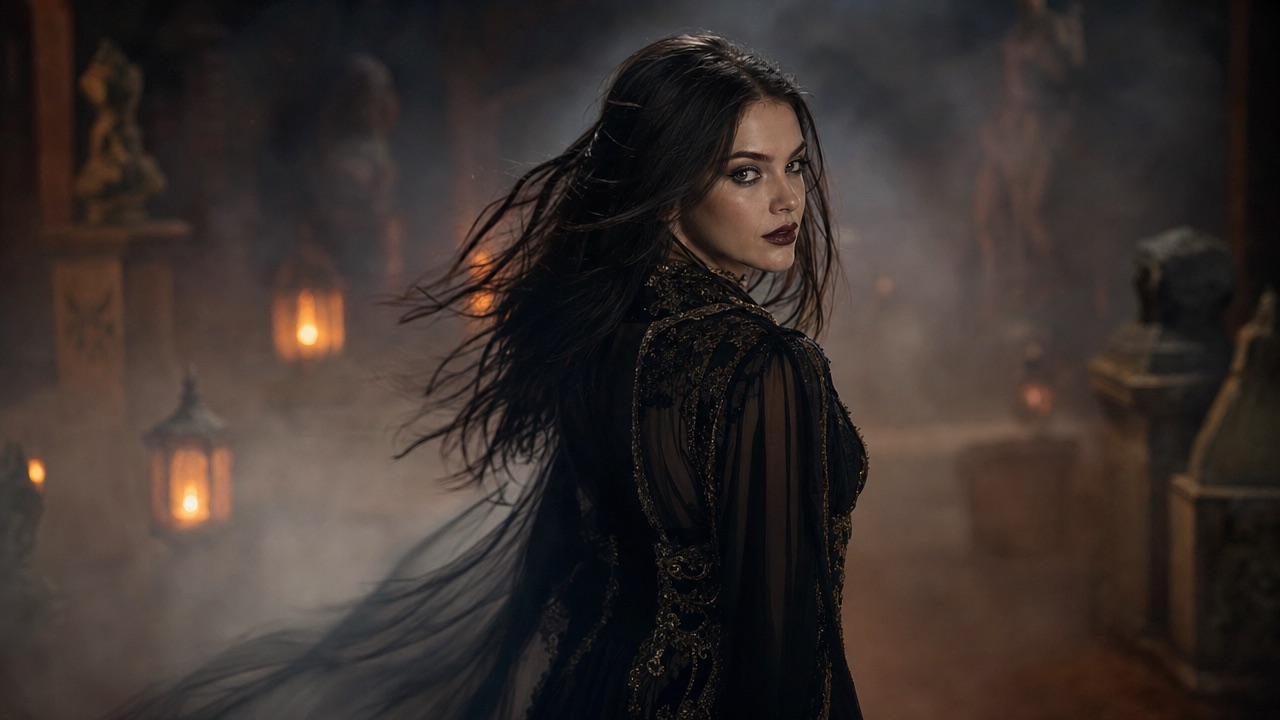
A slow turn toward the camera adds life without changing the costume or the framing.
Drifting fog and a light breeze create movement in the background and around the shoulders.
A smooth push-in adds drama while keeping the subject centered and stable.
Each card opens the studio with the prompt and mode already loaded. Upload a photo and press generate.
The model receives a still image and a motion prompt. It uses the still as the first frame and generates the following frames, trying to keep the subject consistent. That is why the quality of the still matters so much: a sharp portrait with a clean background gives the model less to invent.
The prompt should describe motion, not a new scene. “The subject slowly turns their head toward the camera; fog drifts; the camera pushes in slowly” is a good motion prompt. “A woman in a gothic garden fights a monster” is a new scene and will likely change the costume and the face.
Portrait reveal: a slow head turn, a subtle expression change, and a gentle push-in. This is the safest recipe and the best first test. Fog drift: the subject stays still while fog moves through the background and a lantern flickers. This is good for a mood clip and avoids face motion entirely. Hair breeze: a light breeze moves loose hair and the edge of the costume while the camera holds steady.
Each recipe changes one kind of motion. Combining all three in one clip is possible, but it gives the model more chances to introduce artifacts. Start with one.
Faces can drift between frames, especially at the jawline and eyes. Thin straps, jewelry, and glasses can shimmer. Hands can change shape if they are visible. Text and logos can warp. These are model limitations, not something a longer prompt can fully eliminate.
The practical fix is to start from a still with a clear face, minimal thin details, and hands out of frame. If a clip fails, shorten the motion or remove the hand/accessory rather than generating more variations of the same prompt.
A video generation costs more than an image because every frame is rendered; the exact amount is shown before you confirm. Video also takes longer. The studio shows the task status and keeps the result in your history.
Generate the still portrait first. Animating a portrait you already like is cheaper than generating a new portrait and a new video from scratch.
Yes, if you have the right to use it. Upload the finished portrait in image-to-video mode. A sharp, front-facing image with a clean background animates more reliably than a busy group photo.
The clip is short by design. Short clips keep the face and costume consistent; longer or faster motion increases the chance of distortion. The studio shows the result when the task finishes.
A video generation costs more than an image; the exact amount is shown before you confirm. An image costs 80 credits.
Frame-to-frame consistency is the hardest part of image-to-video. Reduce the amount of motion, start from a sharper still, and keep hands and thin accessories out of frame to improve stability.
This workflow generates the visual clip. Add music, captions, and text in a video editor after downloading. Asking the model to render text usually produces warped lettering.
Upload a costume photo and animate it with a controlled head turn, hair movement, and drifting fog. A practical image-to-video workflow with a prompt recipe.
Midnight Braids Halloween LookTurn a selfie into a gothic Halloween portrait with long violet braids, a velvet outfit, and a moonlit garden. Full prompt recipe, 80 credits per image.
Cosmic Princess Halloween PortraitCreate a celestial Halloween princess portrait with a midnight-blue gown, silver embroidery, and a starry observatory. Full prompt and 80-credit generation.
Haunted Unicorn Halloween PortraitGenerate an original haunted unicorn mascot costume portrait with a pastel horn, plush mane, and foggy carnival scene. Face stays visible. 80 credits.
AI Halloween Costume GeneratorUpload one selfie and generate a photorealistic Halloween costume portrait. Six costume looks, identity-preserving edits, 80 credits per image, no app install.
Last updated October 20, 2026. Prices and credit costs can change; the pricing page and the generator show the current amount before you confirm a generation.