Video preset

Animate a Halloween Photo

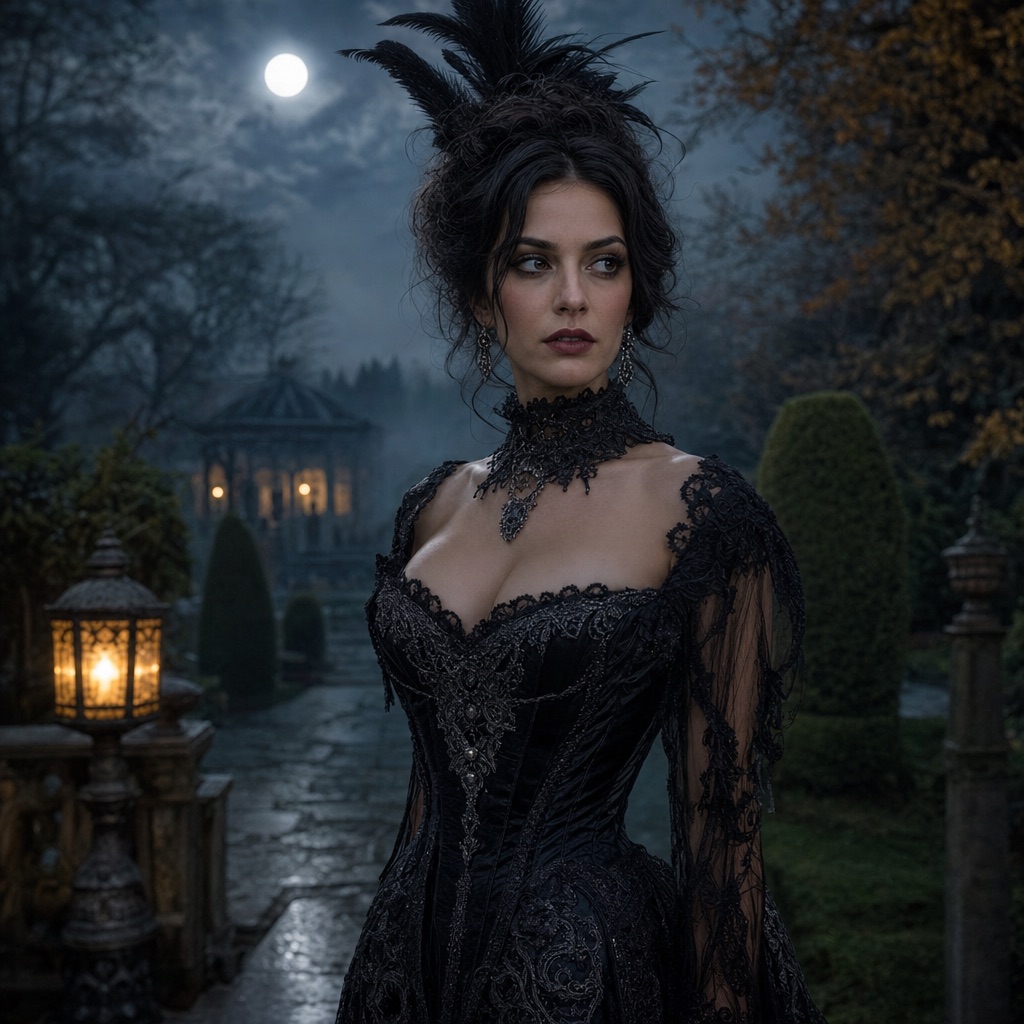
This preset is the step-by-step version of the video workflow. It takes one finished Halloween portrait and adds a small, controlled motion: the subject turns their head toward the camera, loose hair moves in a light breeze, fog drifts, and the camera pushes in slowly.

It is deliberately conservative. The prompt tells the model to keep the face, costume, hairstyle, and body proportions consistent with the reference, and it forbids scene cuts, new characters, and identity changes. That makes it a reliable first animation.

80 credits per image. Video costs more and is shown before you generate. No app install.

Halloween portrait used as the first frame for an AI image-to-video animation

Step one

Generate or upload a sharp portrait with a clear face and a clean background.

Step two

Open the preset, upload the portrait, and keep the motion prompt as written for the first run.

Step three

Review the clip for face drift and shimmering details; reduce motion if either appears.

Prompt recipe

A short video clip made from a Halloween portrait, with the costume and identity held steady.

This is the exact instruction the studio sends. Edit one sentence at a time so you can tell which change helped.

videoanimationfogportrait
Use the provided image as the exact visual reference and starting composition. Preserve the subject's recognizable face, costume, hairstyle, and body proportions consistent with the reference. Create a continuous cinematic Halloween portrait animation. The subject slowly turns their head toward the camera with a subtle mysterious expression. A gentle breeze moves loose hair strands and the edges of the clothing. Soft fog drifts through the background. The camera performs a slow, smooth push-in. Maintain realistic motion, stable anatomy, and consistent lighting. Do not change the person's identity, replace the costume, add characters, or introduce sudden scene cuts. No text or watermarks.

Short clips work best; long or fast action is more likely to distort the face.

Text, jewelry, and thin straps can shimmer between frames.

Generate the still portrait first, then animate the result you like.

How to get a better result

Before you animate: choose the right still

A video model can only preserve what the still shows clearly. Use a portrait where the face is sharp, the lighting is even, and the costume has a readable silhouette. A busy background gives the model more surfaces to hallucinate motion on, which makes the clip feel unstable.

Hands, thin jewelry, and loose straps are common sources of shimmer. If you have a version of the portrait without them, use it for the animation. You can always add a still image with hands to the final post separately.

The motion prompt, explained

The prompt has four motion beats: a slow head turn, a light breeze in the hair and clothing, drifting fog, and a slow camera push-in. Each beat is small and physically plausible. That is why the result tends to hold together.

The prompt also has explicit negatives: do not change identity, replace the costume, add characters, or cut scenes. These are not decoration. They tell the model which parts of the frame are allowed to move and which are supposed to stay fixed.

How to iterate without wasting credits

Run the preset once exactly as written. If the face holds and the costume stays consistent, you have a usable clip. If the face drifts, remove the head turn and keep only the fog and camera push-in. If the costume shimmers, reduce the breeze and keep the camera still.

Change one motion at a time. A clip that tries to fix three problems at once is hard to evaluate, and you will not know which change improved the result.

What to do with the clip

Download the clip and add music, captions, or a title in a video editor. Do not ask the image model to render text; lettering warps between frames. If you need a vertical version for social, generate or crop with a vertical aspect ratio rather than stretching a horizontal clip.

Label the clip as AI-generated when the platform asks. Do not present it as footage of a real event or a real costume product.

Frequently asked questions

What photo should I animate?

A sharp, front-facing Halloween portrait with a clean background. The still should already look the way you want the video to look, because the model uses it as the first frame.

How much motion can the model handle?

Small, physically plausible motion works best: a head turn, a breeze, drifting fog, and a slow camera move. Fast action, dancing, and scene changes are much more likely to distort the face and costume.

How many credits does one animation cost?

A video generation costs more than an image; the exact amount is shown before you confirm. Generate the still image first; an image costs 80 credits.

Why do the eyes or jawline change?

Frame-to-frame identity consistency is the hardest part of image-to-video. Reduce the head motion, start from a sharper still, and avoid extreme expressions in the source image.

Can I animate a pet portrait?

Yes. Use a clear pet portrait and reduce the motion to a slight head turn and drifting fog. Fast paw or tail movement is more likely to produce artifacts.

Last updated October 20, 2026. Prices and credit costs can change; the pricing page and the generator show the current amount before you confirm a generation.