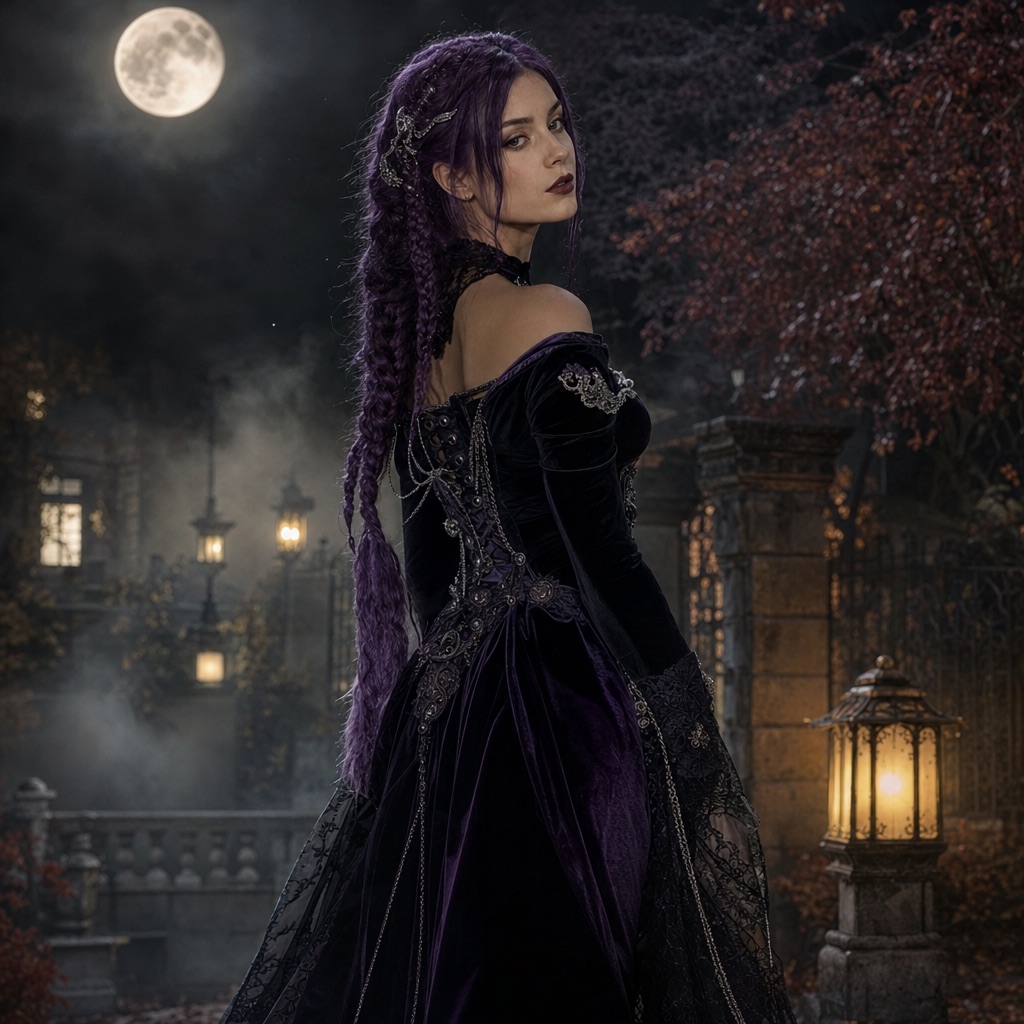
Midnight Braids
1 photoA gothic editorial portrait with long violet braids, velvet, and a moonlit garden.
Open this presetThis editor is for photos that already exist. Maybe you have a costume shot with a messy background, a selfie that needs fog and lantern light, or a pet photo that would be funnier in a pumpkin patch. Instead of generating a new person, the workflow edits the photo you upload and keeps the face and body intact.
The useful distinction is between a costume generation and a photo edit. A generation invents the outfit and the scene. An edit changes selected parts of a real photo: background, lighting, atmosphere, makeup, or a single costume detail. The second approach is faster when the photo is already good.
80 credits per image. Video costs more and is shown before you generate. No app install.
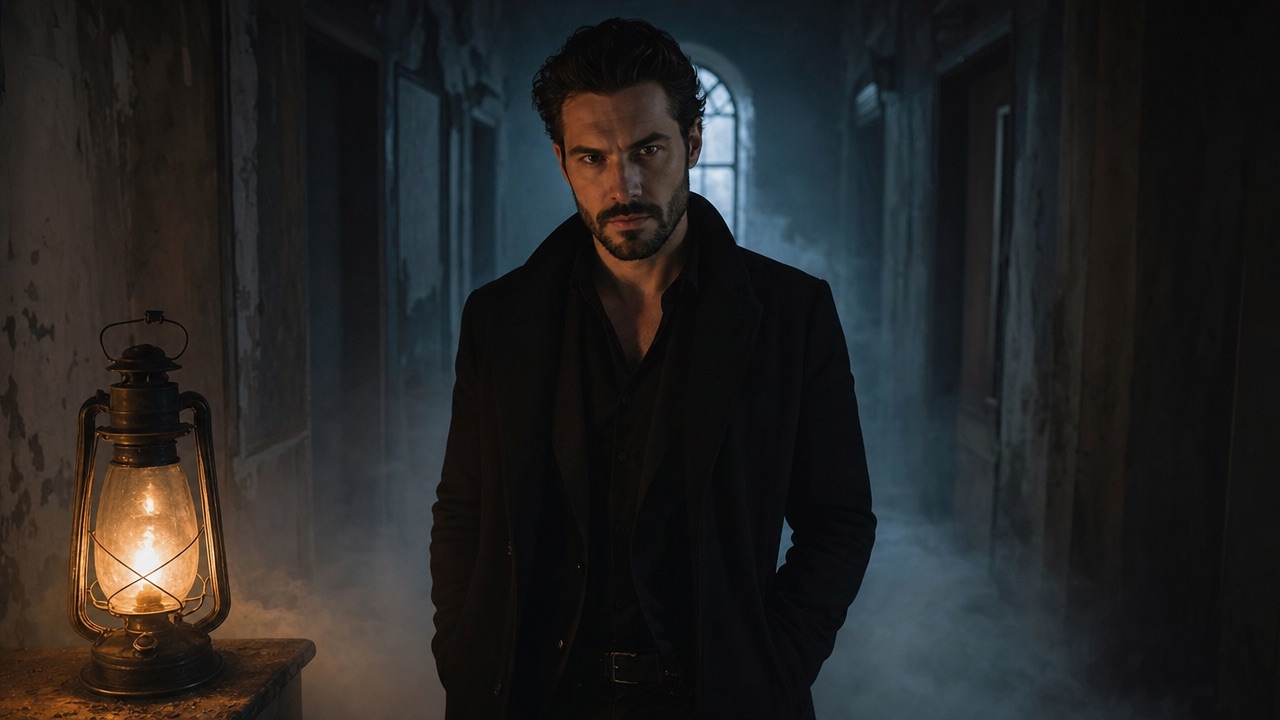
Replace a living room with a moonlit garden, a foggy carnival, or a starry observatory while keeping the subject in place.
Add soft fog, practical lantern light, window moonlight, or a warm autumn glow without changing the costume.
Adjust eye makeup, lip color, metallic accessories, or fabric details while protecting the underlying face shape.
Each card opens the studio with the prompt and mode already loaded. Upload a photo and press generate.
A gothic editorial portrait with long violet braids, velvet, and a moonlit garden.
Open this preset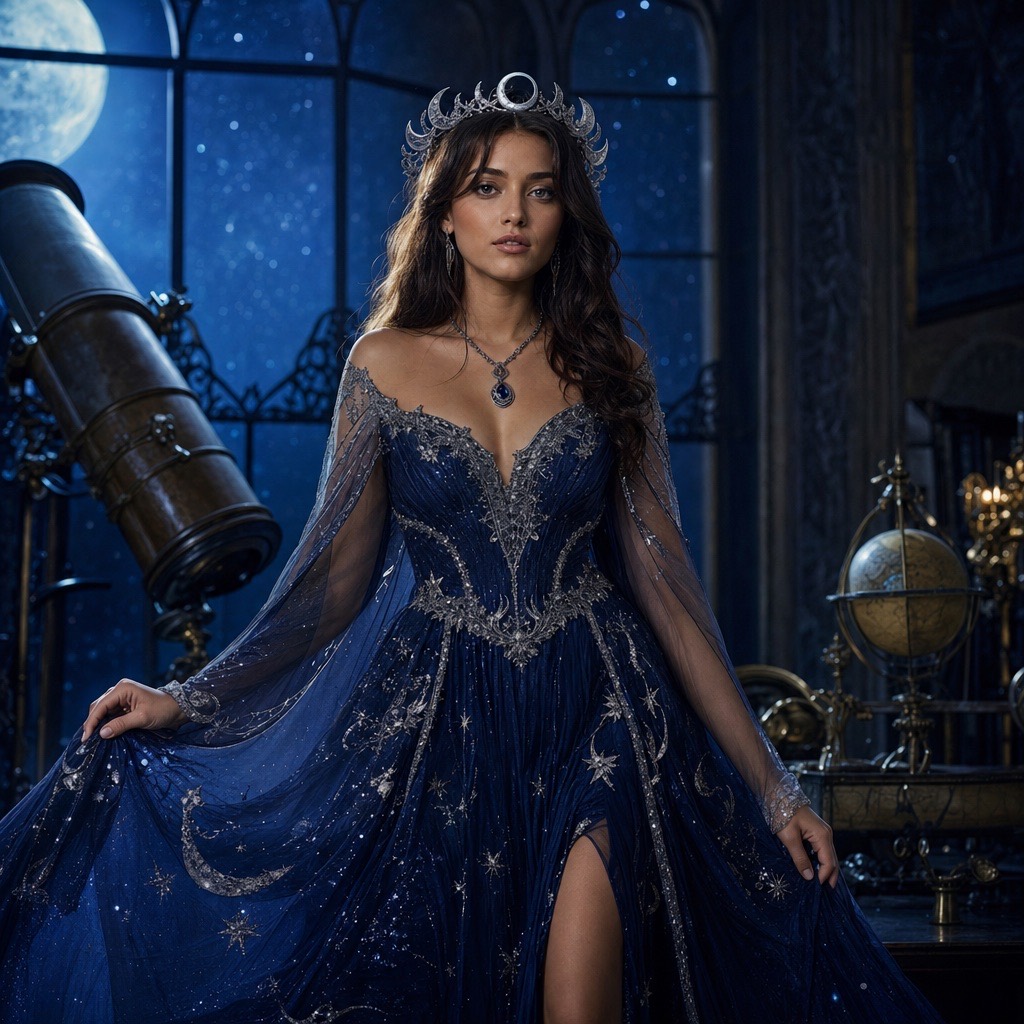
A celestial princess portrait with a midnight-blue gown, silver embroidery, and a starry observatory.
Open this preset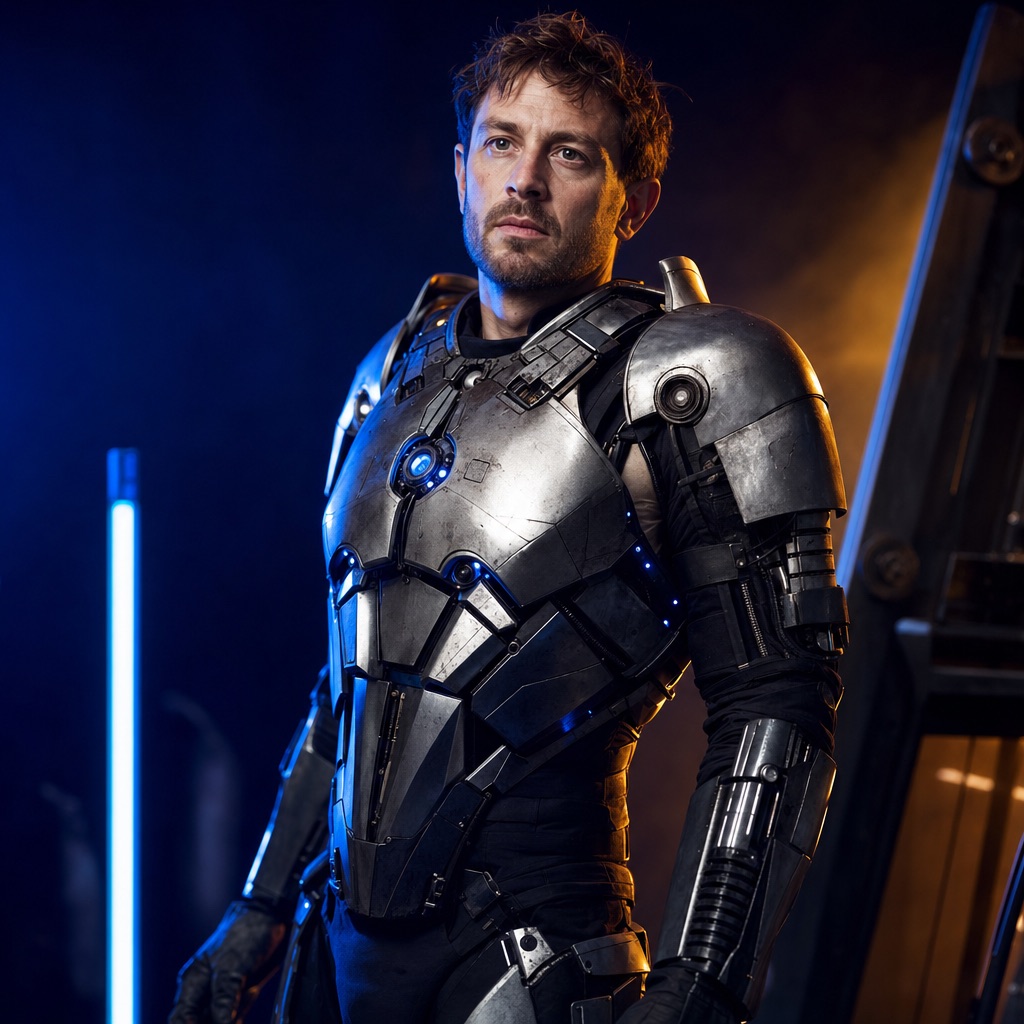
A wearable robot costume with metal panels and blue LEDs, built around a real face.
Open this presetThe model responds best to concrete visual instructions: “replace the background with a foggy Victorian garden,” “add warm lantern light from the left,” “change the jacket to black velvet with silver buttons.” Vague instructions such as “make it spookier” give the model too much freedom and often change the face as well as the mood.
You can combine two or three edits in one request. More than that increases the chance that something you wanted to keep gets changed. If you need a new background and a new costume, do them in two passes and keep the better result from each.
Fog portrait: keep the subject, replace the background with dark autumn foliage, add low fog and a soft lantern glow. This is the safest edit because it changes little of the person. Pumpkin patch: keep the costume, move the subject into an autumn field with miniature pumpkins and warm late-afternoon light. Haunted hallway: keep the pose, replace the room with a dim corridor, add a weak practical light and a distant window.
Each of these edits changes the scene, not the identity. That is the pattern to follow. If you want a new costume too, generate the costume first with a preset, then edit the background in a second pass.
Pass one fixes the person: costume, hair, makeup, and pose. Download the result you like. Pass two fixes the scene: background, fog, and lighting. Doing both in one prompt is possible, but two passes make it easier to see which instruction caused a problem.
Keep the downloaded intermediate image. If pass two goes wrong, you can return to the pass-one file instead of spending credits to regenerate the costume. The task history also keeps the prompt, so you can compare versions without guessing what changed.
Avoid asking the model to “fix” a face, change age, change body shape, or remove a feature. Those requests conflict with the identity-preservation instruction and produce uncanny results. Avoid adding text, logos, or a specific brand costume; image models render lettering poorly and may invent a fake logo.
Avoid uploading a photo with other people in the background if you only want to edit one person. The model may keep the extra people, remove them unpredictably, or merge two faces. Crop to the subject before uploading.
The costume generator invents a new outfit and scene around a selfie. The photo editor changes selected parts of an existing photo, such as the background, lighting, or makeup, while keeping the original costume and pose.
Yes. Ask for a background replacement and explicitly say to preserve the face, skin tone, pose, and clothing. Fog and lantern light are safer additions than a full costume change because they do not alter the body.
An image edit costs 80 credits, the same as an image generation. A two-pass workflow therefore costs 160 credits if you generate a costume first and then edit the background.
Yes. Background, lighting, and costume edits work for pets, but use the Pumpkin Pet preset for a full costume change. It is written to preserve breed, fur color, and markings.
Image models are unreliable at exact lettering and brand marks. The presets explicitly avoid text and logos. If you need a caption, add it in a design tool after generation instead of asking the model to render it.
Upload one selfie and generate a photorealistic Halloween costume portrait. Six costume looks, identity-preserving edits, 80 credits per image, no app install.
Midnight Braids Halloween LookTurn a selfie into a gothic Halloween portrait with long violet braids, a velvet outfit, and a moonlit garden. Full prompt recipe, 80 credits per image.
Cosmic Princess Halloween PortraitCreate a celestial Halloween princess portrait with a midnight-blue gown, silver embroidery, and a starry observatory. Full prompt and 80-credit generation.
Halloween Robot CostumeGenerate a wearable robot costume portrait with metal panels, blue LED accents, and cinematic lighting. The face stays human. Full prompt and 80 credits.
Halloween AI Video EffectsTurn a Halloween portrait into a short AI video: slow head turn, drifting fog, glowing lanterns, and a gentle camera push-in. Image-to-video in the browser.
Last updated October 20, 2026. Prices and credit costs can change; the pricing page and the generator show the current amount before you confirm a generation.